
Quick Summary
- Yes, you can edit a video's title after publishing in YouTube Studio.
- Change it when evidence points to a clarity, accuracy or audience-fit problem, not because of an arbitrary timer or one early CTR reading.
- Check impressions, traffic sources, CTR and viewing behavior together before deciding what to change.
- Make one deliberate edit, record what changed and when, and monitor comparable data afterward.
- Use YouTube's native A/B testing where eligible if you want to compare title options with its watch-time-based evaluation.
Yes, you can change a YouTube title after publishing. Open the video's details in YouTube Studio, update the title and save. Whether you should change it depends on the mismatch you are trying to fix: an unclear promise, inaccurate wording, or a title that no longer reflects the video. YouTube does not promise that an edit will increase views or rankings.
When should you edit a YouTube title after upload?
Consider an edit when the title is confusing to a new viewer, leaves out the central subject, promises something the video does not deliver, or uses a phrase that is inaccurate. Correct factual or policy-sensitive wording promptly. A title can also be clarified when analytics and viewer feedback show that people misunderstand the topic, but analytics alone rarely isolate the title as the cause.
Avoid changing a title simply because the first few hours look quiet. YouTube advises creators not to judge CTR too early and to consider the traffic source and audience. A decrease can happen while a video is being shown to more people. See the low-CTR diagnosis guide before deciding that the title needs replacing.
How to change a YouTube video title
In YouTube Studio, open Content, select the published video, edit its title in the video details, then save. Keep the revised wording within the 100-character title limit and check the public watch page afterward to confirm the update appears correctly. Interface labels may change, so use the current Studio details workflow if the menu differs.
Change a title in the YouTube Studio app
On a phone, open the YouTube Studio app, tap Content, choose the video, use its edit control, update the title, then tap Save. Open the public watch page after saving. That page normally reflects the new title first, while search results, shared previews and other cached surfaces can take longer to refresh.
Before saving, check that the revised title still describes the video accurately, makes sense without your channel's context and fits the thumbnail. If the video is about a specific phone setting, do not replace that subject with a vague promise such as “This changed everything” unless the title and video together make the subject apparent. The first-video title guide includes a useful stranger-test: could an unfamiliar viewer explain what they will get?
What changes when you edit a YouTube title?
Editing the title updates the video details. It does not create a new upload or reset the video's existing public views, likes or comments. If an older title still appears in a search display or a link preview shortly after saving, treat that as a refresh delay rather than proof that the edit failed.
When changing a published title is the right move
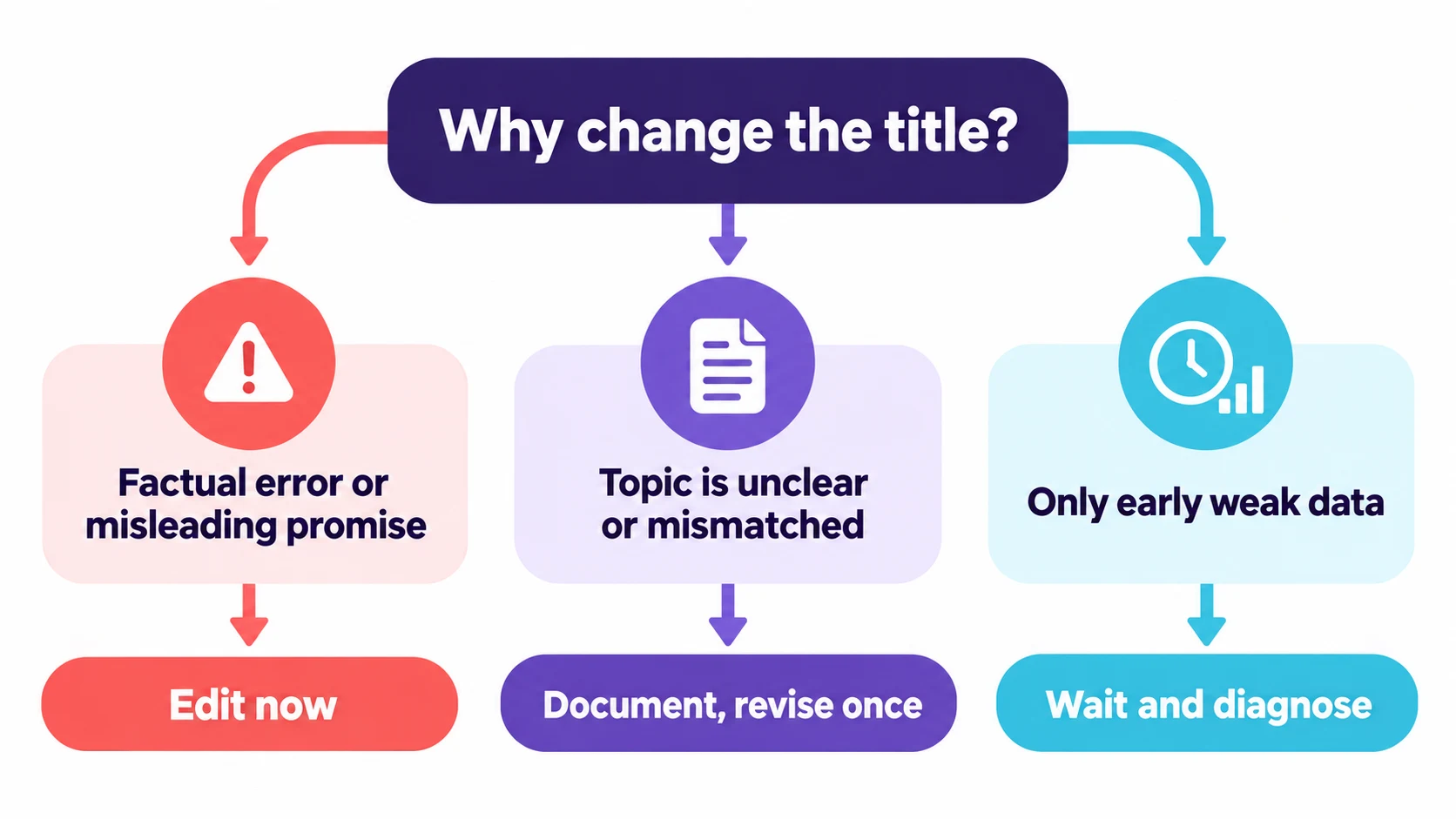
Change the title promptly for an error, an outdated fact, an unclear subject or a mismatch between the package and the video. These are editorial fixes, not growth hacks. For example, if a Tamil tutorial was uploaded with a model name typo, correction helps the intended viewer and prevents the wrong searchers from clicking.
An edit may also be worth considering when the title uses channel-specific context that a new viewer will not understand. "My biggest editing mistake" can work for a familiar creator, but it may be less clear than "The CapCut Export Setting That Made My Video Look Blurry" when the video is a practical tutorial. Keep the revised wording accurate and do not imply a result the video cannot show.
Do not change a title just to react to a slow first few hours, one comment or a small CTR movement. Those signals can be influenced by audience, traffic source and the number of impressions. Use the low-CTR diagnosis guide to decide whether the package is the likely issue before editing it.
A before-and-after note that makes the edit useful
Without a note, a title change is difficult to evaluate later. Copy this compact record into your channel workspace before you save.
| Record | Why it matters |
|---|---|
| Previous and new title | Lets you identify the exact clarity or promise change |
| Edit date and video age | Helps explain differences in audience maturity and distribution |
| Thumbnail status | Shows whether you changed one element or the whole package |
| Main traffic sources | Prevents Search, Home and Suggested performance being blended carelessly |
| Impressions, CTR, views and average view duration | Gives context beyond a single rate |
| Hypothesis | States what you expect to learn, such as whether the topic is easier to recognize |
For example: "Changed a vague Tanglish title to name the phone model and storage problem. Kept the thumbnail unchanged. Reviewing Search and Browse separately after enough new impressions." This is a usable hypothesis. "Changed title to get more views" is too broad to teach you anything.
Use the title test tracker to keep that record in one place, especially if several people review the channel's packaging.
How to judge the effect of a title change
Record the old title, new title, edit time, video age, date range and the metrics you plan to review. A completed title brief template can preserve the viewer, promise and evidence behind the change. Look at impressions, CTR, views and average view duration by traffic source. Compare a suitable period before and after, but call it an observation rather than proof: the audience, distribution, topic demand and time of day can change at the same time.
If your account offers the native YouTube title and thumbnail A/B test, use it for a more structured comparison. YouTube can test up to three title options, thumbnail options or combinations for eligible videos. The test may take a few days or up to two weeks, and the selected outcome is based on watch time. A running test stops if you manually change the title or thumbnail. Follow the step-by-step YouTube title-testing guide to choose title-only testing when that is the question you want to answer. This is preferable to repeatedly swapping copy and attributing every movement to one edit.
What to check after the new title is live
First, open the public watch page on mobile and desktop. Confirm that the title reads naturally, the most useful words appear early enough for smaller screens, and the thumbnail still supports the same promise. A grammatically correct title can still be unclear once it is shortened in a feed.
Then let the new version collect meaningful data before judging it. Compare relevant traffic sources instead of treating a change in the blended rate as proof. Use the YouTube CTR meaning guide to interpret the rate alongside impressions and traffic source. If impressions grow into a broader audience, CTR can fall while views and watch time improve. If the title earns clicks but viewers leave quickly, revisit the opening and the actual delivery rather than making the wording more dramatic.
Finally, decide whether the change taught a repeatable lesson. If it did, apply the principle to similar future videos. If it did not, leave a simple note and move on. Constant title swapping produces noise and makes your channel's packaging strategy harder to improve.
| Situation | Suggested action |
|---|---|
| Clear factual error or misleading promise | Correct it promptly |
| Topic is missing or difficult to understand | Draft a clearer, accurate alternative |
| One early CTR reading looks low | Check sample, impressions and source before acting |
| The package gets clicks but viewers leave quickly | Check promise, opening and delivery |
| You want to compare several versions | Use native testing if eligible; otherwise document the limits |
Will changing a YouTube title hurt views or ranking?
A title edit does not guarantee a boost or a penalty. YouTube says changing a title or thumbnail can be effective, but recommends not changing what is working. Its systems respond to how viewers react after publication, while Search also considers relevance to a query. Evaluate the content and audience response rather than treating the edit itself as a ranking trick.
Can I change the title of my YouTube video after posting?
Yes. Edit the video's details in YouTube Studio and save the new title. Check the watch page afterward.
Does changing a YouTube title affect views?
It can change how viewers understand and respond to the package, but results are not guaranteed. Views also depend on impressions, audience, traffic source, topic and other factors. Use a test when possible and avoid overclaiming what a before-and-after comparison proves.
How often should I change a video title?
There is no universal schedule. Make a change when you have a specific accuracy or clarity reason, then give the new version time and data to be evaluated. Repeated edits without a clear question make the result harder to interpret.
Will my old YouTube title still appear after I change it?
The public watch page should update after you save, but cached previews, search displays and links shared elsewhere may take time to refresh. Check the watch page and avoid treating a temporary display difference as a failed edit.
Can I change the title and thumbnail at the same time?
You can edit both, but changing both at once makes it harder to learn which element affected viewer response. Make both changes together only when the whole package is inaccurate or mismatched. Use a title-only or thumbnail-only test when you need a clearer answer.
Does changing the title reset YouTube views or comments?
Editing a video's title changes its details. It does not create a new upload or reset the existing public views, likes or comments. Check the current Studio settings for your specific video before saving.
Should I change a title after getting negative comments?
Consider a change when comments reveal a genuine misunderstanding, inaccurate phrase or promise the video does not fulfil. Do not rewrite a clear, accurate title merely to remove fair disagreement with the video.
Your next step
Save the current title and relevant analytics before editing. Then use the title and thumbnail strategy guide to make the new wording and image reinforce the same promise.
Sources: YouTube edit video settings, YouTube performance FAQ and troubleshooting, YouTube thumbnail and title tips, YouTube A/B testing titles and thumbnails